Frontend Setup
We will just provide the proper environment variables (.env.local file) to the frontend, after that the frontend will be ready to run.
General
API URL - set your primary backend domain as your NEXT_PUBLIC_API_URL environment variable. Example: https://www.backenddomain.com.
Frontend URL - set your frintend domain as your NEXT_PUBLIC_FRONTEND_URL environment variable. Example: https://www.example.com.
Internal Session Secret - use the same 32 charcter long session secret that we generated for the backend and place it as SESSION_SECRET environment variable.
The backend and frontend SESSION_SECRET must be same.
Google reCAPTCHA
Use the Google reCAPTCHA Site Key as NEXT_PUBLIC_RECAPTCHA_SITE_KEY environment varibale.
Firebase
- Go to Firebase https://firebase.google.com/
- Click Go to Console
- Click create a project
- Then write your project name and press Continue button.
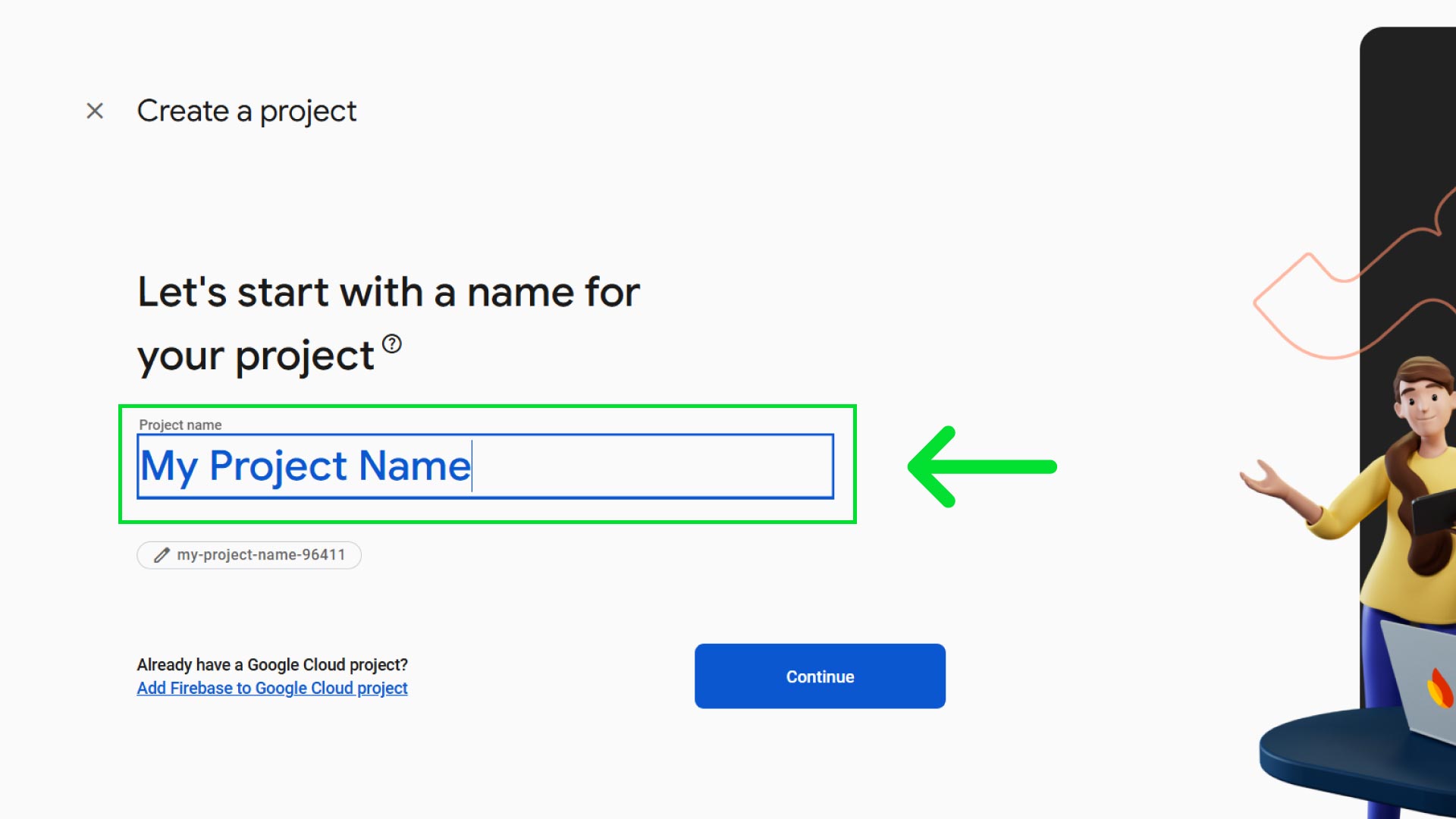
- AI assistance for your Firebase project is not necessary. Yet, if you want you can enable Gemini in Firebase option. Then press Continue.
- We will use Google Analytics separately, so you can disable it, and press Continue.
- Wait few moments and it will create your firebase project, then press Continue, it will take you to the firebase console dashboard.
- Press the Web button.
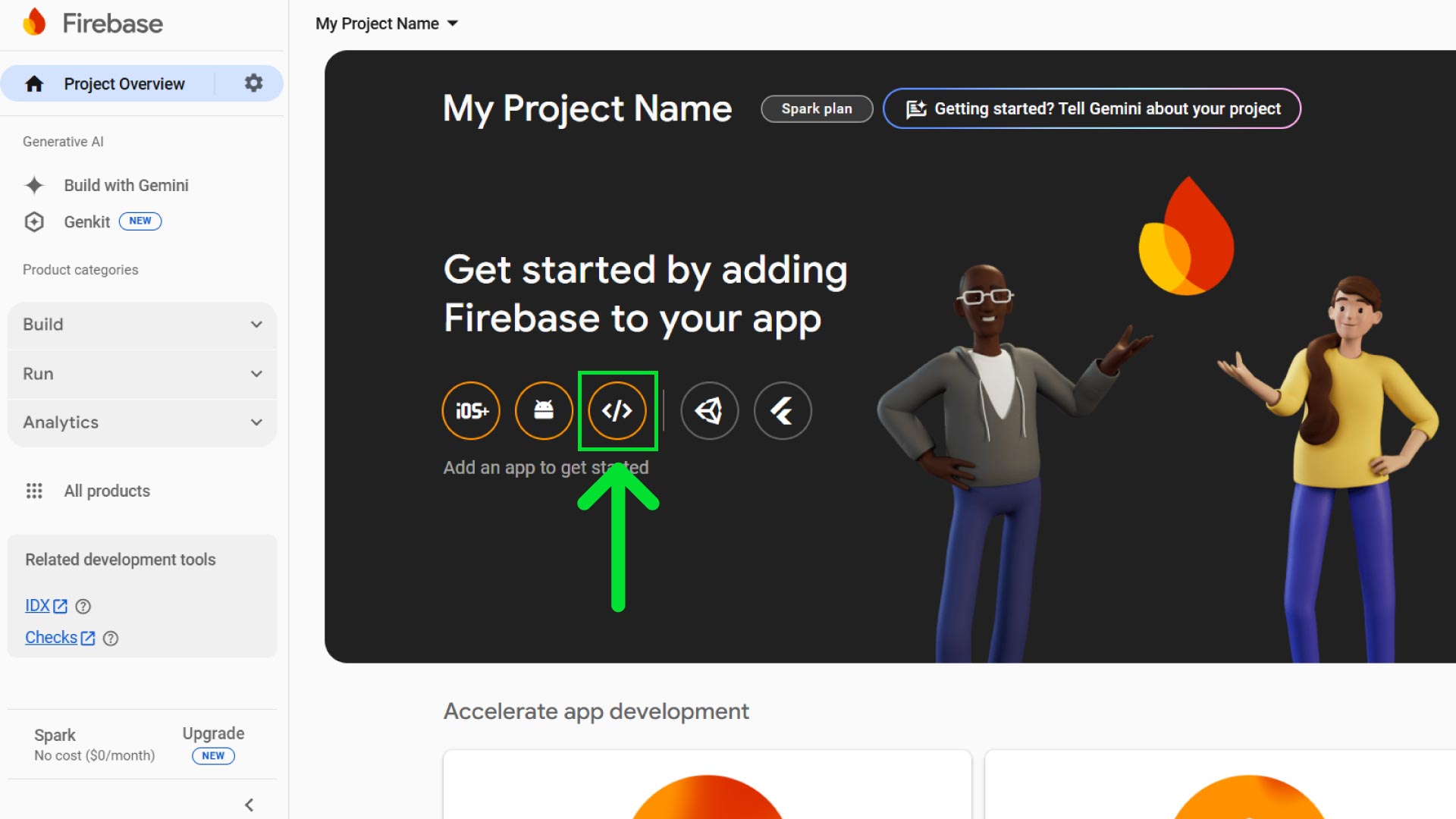
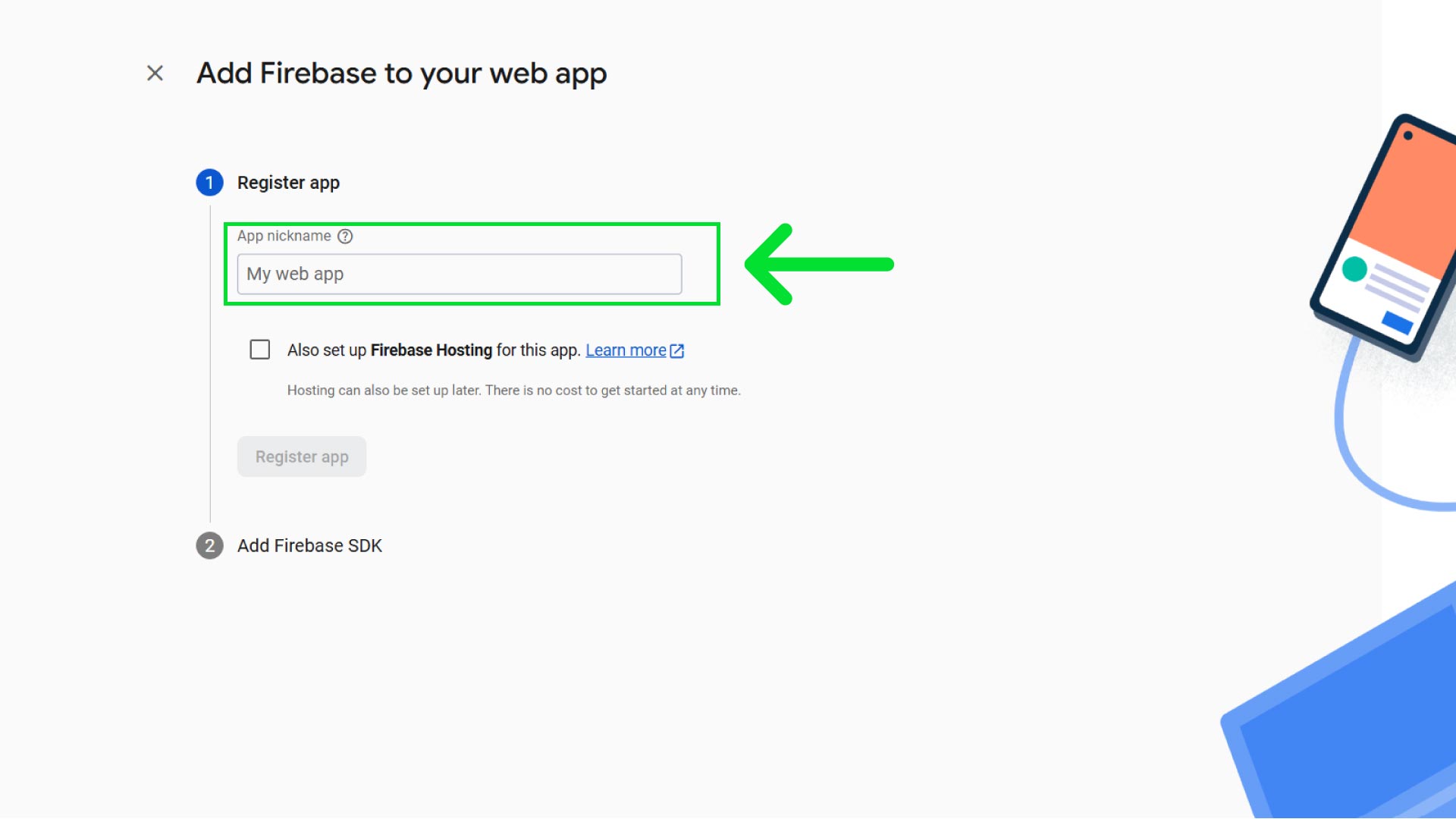
- It will open a popup, then write a nickname and click Register App.
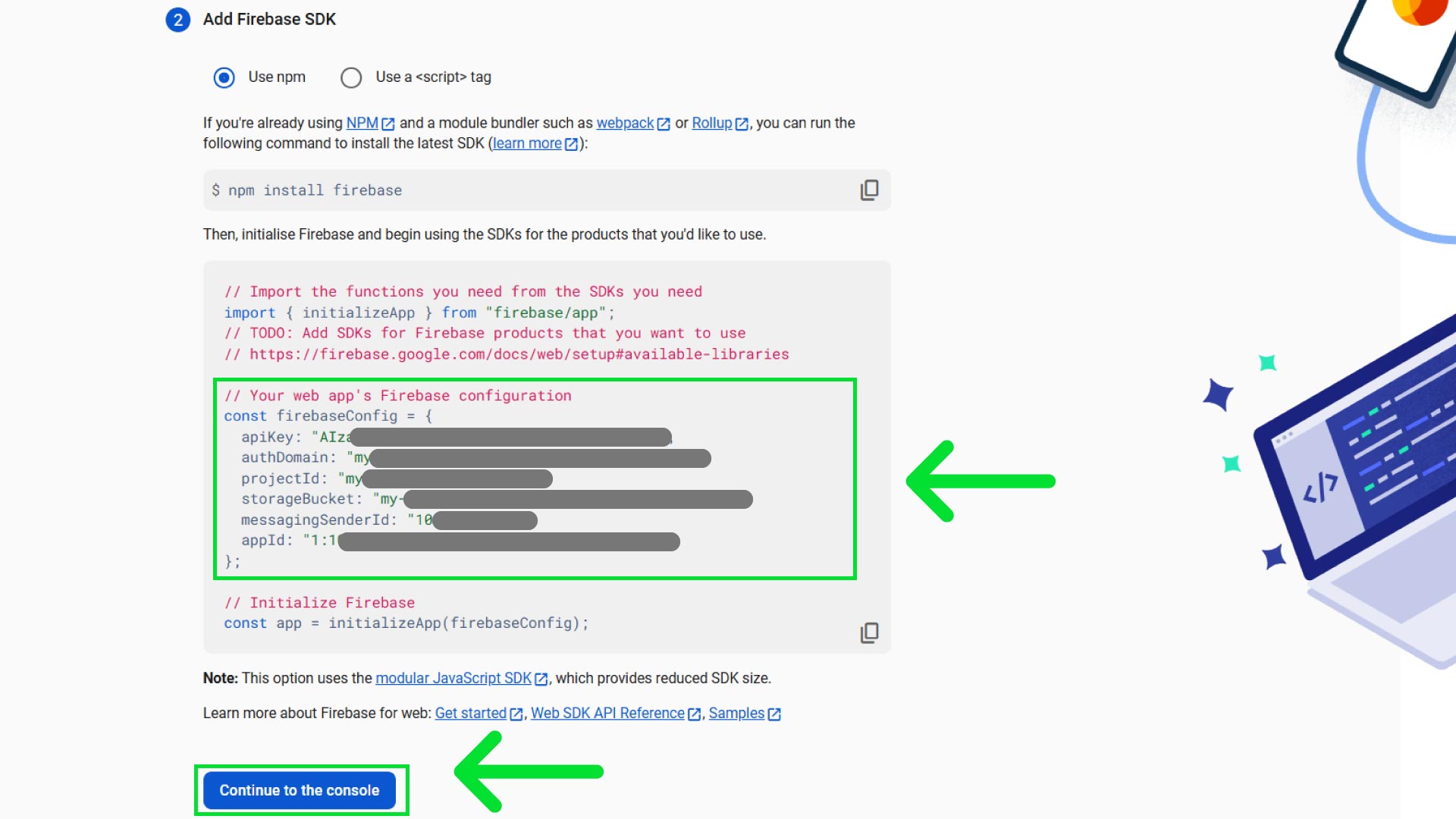
- Then it will provide your web app's Firebase configuration. Copy the
firebaseConfigand save it in a secure place. Then press Continue to console.
- Open your frontend code in VS Code and open
.env.localfile, and write thefirebaseConfigvalues there and save it.
# Firebase Config
NEXT_PUBLIC_FIREBASE_API_KEY="*************"
NEXT_PUBLIC_FIREBASE_AUTH_DOMAIN="********************"
NEXT_PUBLIC_FIREBASE_PROJECT_ID="************"
NEXT_PUBLIC_FIREBASE_STORAGE_BUCKET="*******************"
NEXT_PUBLIC_FIREBASE_MESSAGING_SENDER_ID="**************"
NEXT_PUBLIC_FIREBASE_APP_ID="************************"
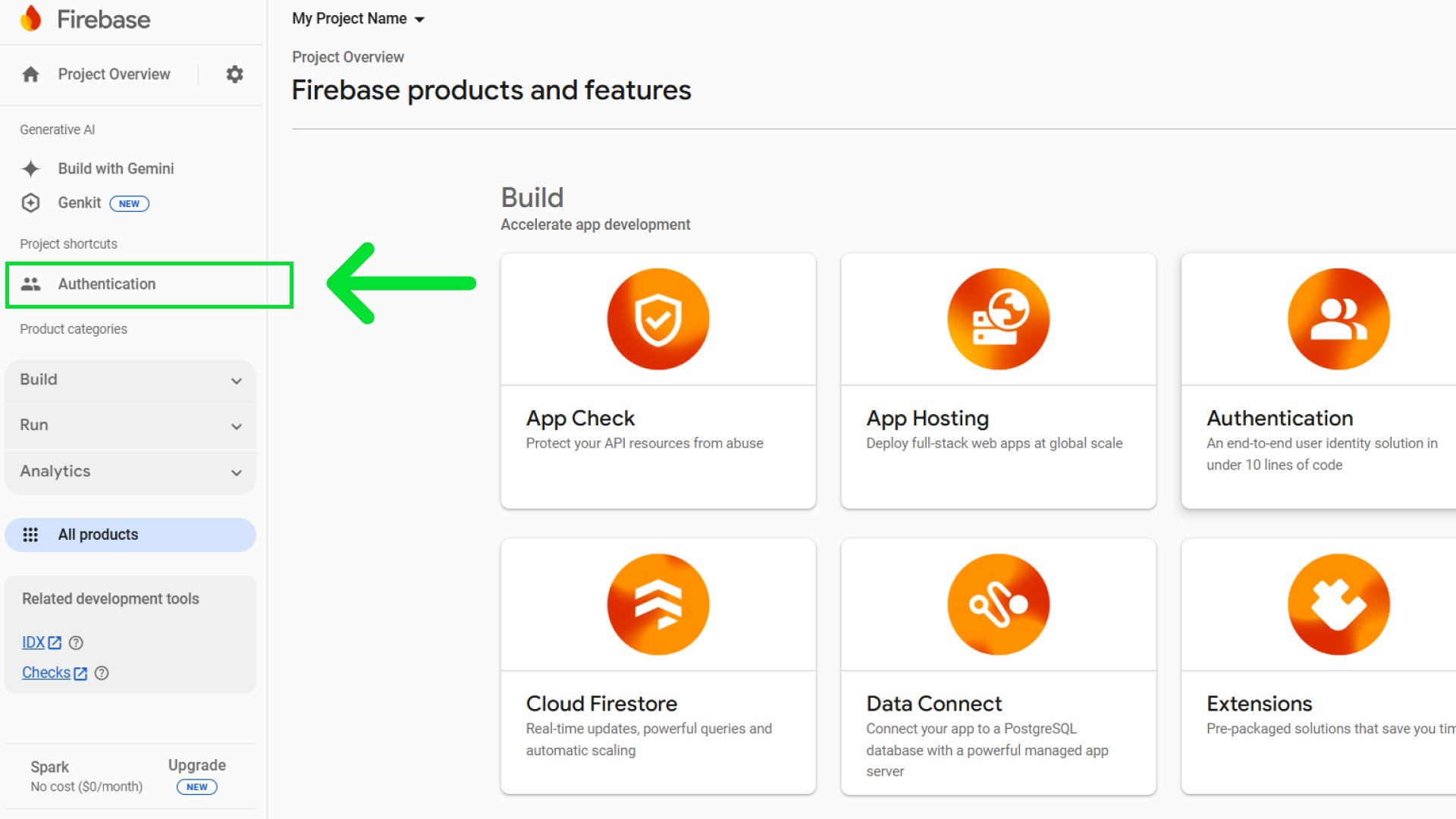
- Then go to All Products then select Authentication then click Get Started
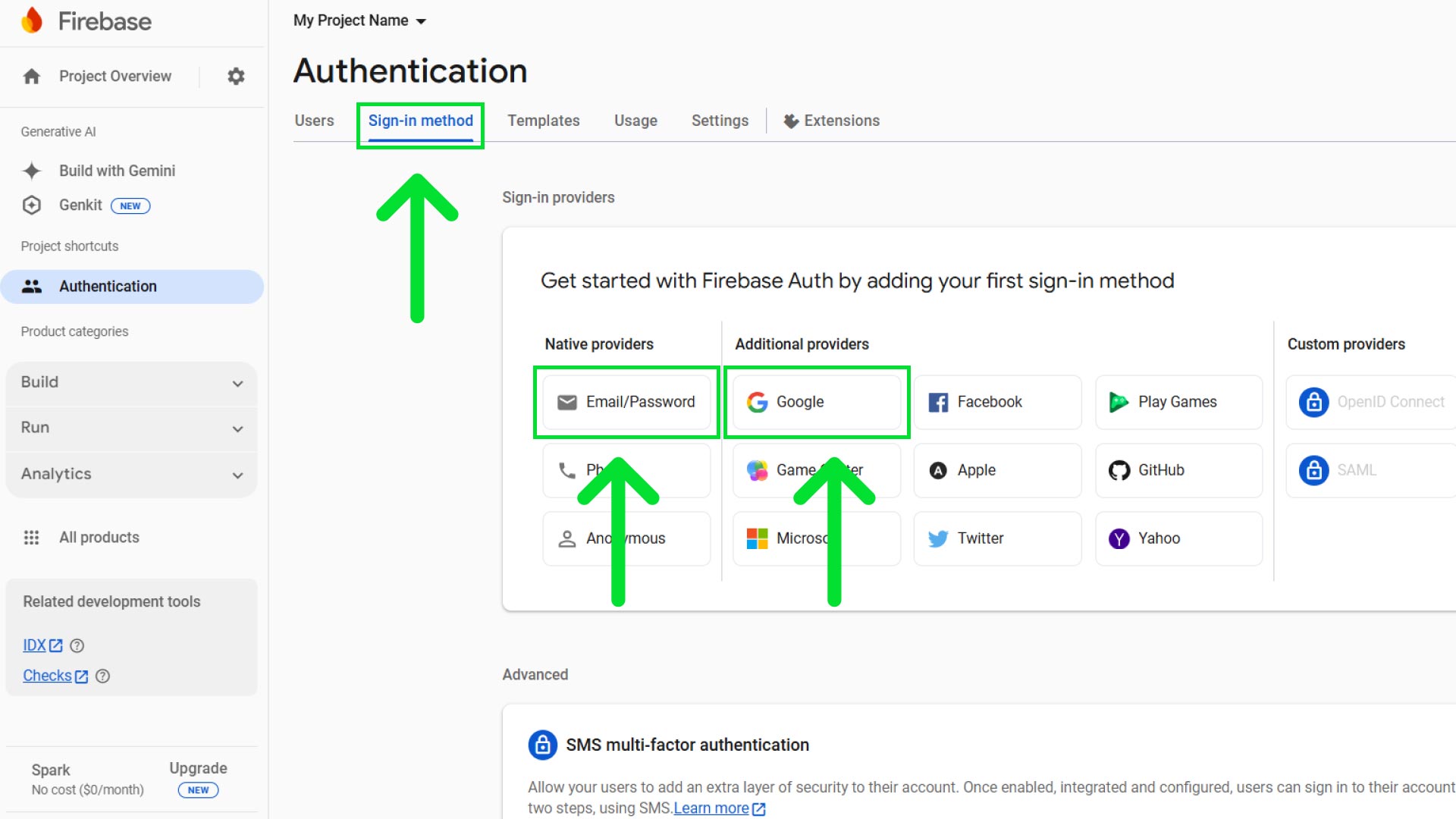
- From sign in providers, click on Email/Password and enable Email/Password. Email link is not necessary. Then press Save.
- Now click add new provider button, then click on Google and enable it. Then if you want you can change Public-facing name. Then press Save.
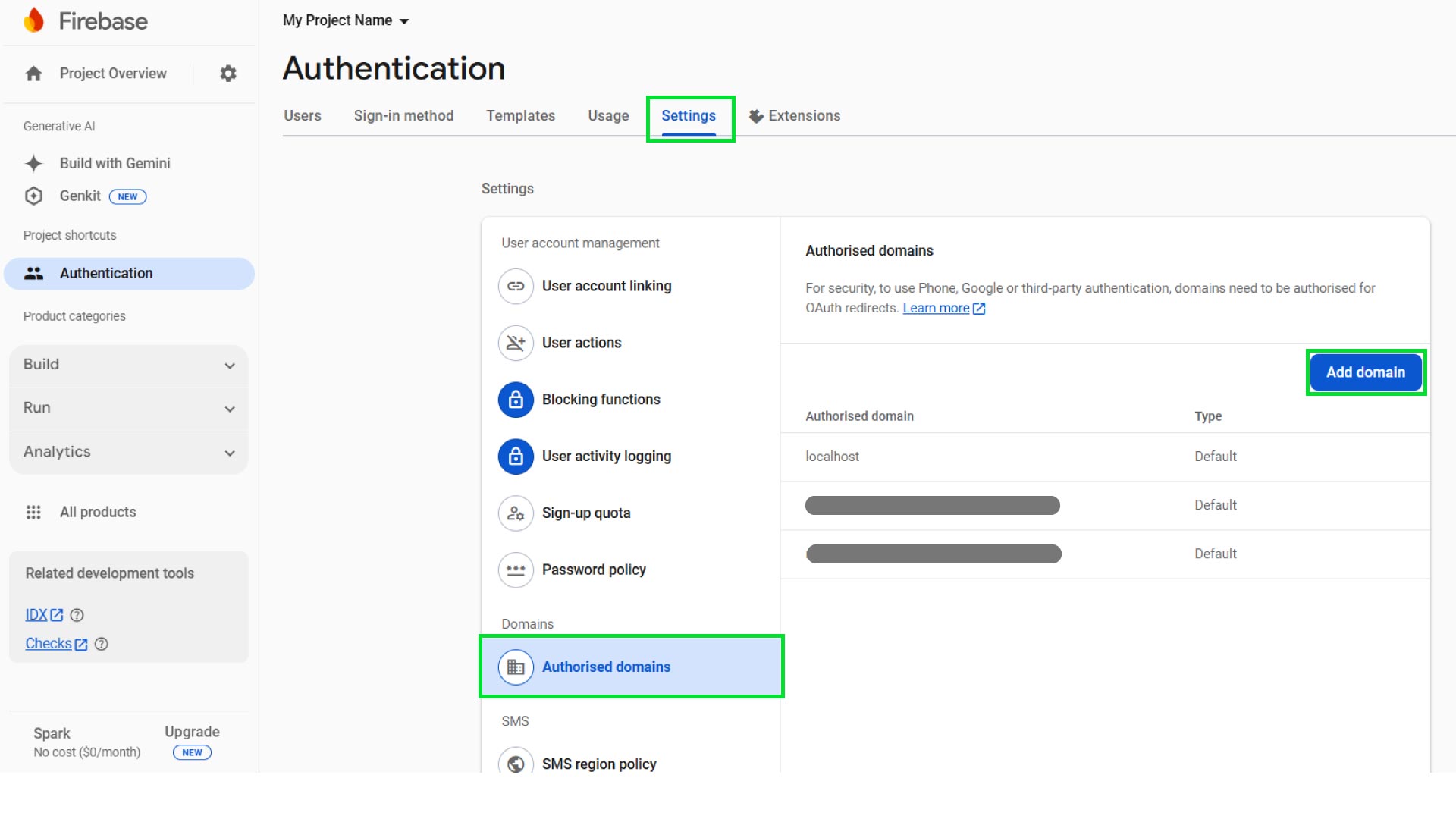
- Then go to settings tab click on Authorised domains, add your frontend domain name here.
- That's it our frontend is ready with Firebase.
Google Analytics Setup
Get the Google Analytics GA id. Then set it as NEXT_PUBLIC_GOOGLE_ANALYTICS_ID.
# Google Analytics
NEXT_PUBLIC_GOOGLE_ANALYTICS_ID="**************"
Footer Update
If you want to update the link of your footer area, open the frontend code, go to config folder, the open app-config.ts file. Here you can update the links of footer area.
{
  title: "twitter",
  url: "https://x.com/imaginioustech",
},
You can only update the url value in the footer. Don't change the title, it might cause error.