Backend Setup
We will just provide the proper environment variables (.env file) to the backend, after that the backend is ready to run.
General
Node Environment - set the NODE_ENV to production.
Port - set the PORT to 8000.
Internal Session Secret - the SESSION_SECRET is used to protect backend api from unauthorized sources. You can generate any 32 character long string and add it here.
Frontend also has a SESSION_SECRET environment variable. The backend and frontend SESSION_SECRET must be the same value.
You can generate 32 character long session secret using this command:
openssl rand -base64 32
You can also generate string using this password generator tool: https://www.lastpass.com/features/password-generator
Frontend URL - set the FRONTEND_URL to your frontend domain name, for example https://www.example.com.
Backend URL - set the BACKEND_URL to your primary backend domain name, for example https://bit.ly.
Google Recaptcha
We use Google recaptcha to secure our public api paths, for example public short URL generator, that used on the home page.
We use score based reCAPTCHA v3.
Register your site for Google reCAPTCHA: https://www.google.com/recaptcha/admin/create.
Add your frontend domian name here and it will give you 2 keys, Recaptcha Secret Key for backend, and Recaptcha Site Key for the frontend. Use the Recaptcha Secret Key as RECAPTCHA_SECRET_KEY environment variable.
Later, we will use Recaptcha Site Key as NEXT_PUBLIC_RECAPTCHA_SITE_KEY on frontend environment varibale.
Firebase Admin
We use firebase for authentication in our system.
- Create a new project on firebase.
Don't know how to open firebase project? Follow this tutorial: Create a New Firebase Project
- Go to firebase console.
- In the Firebase console, open Settings then go to Service Accounts tab.
- Click Generate New Private Key, then confirm by clicking Generate Key.
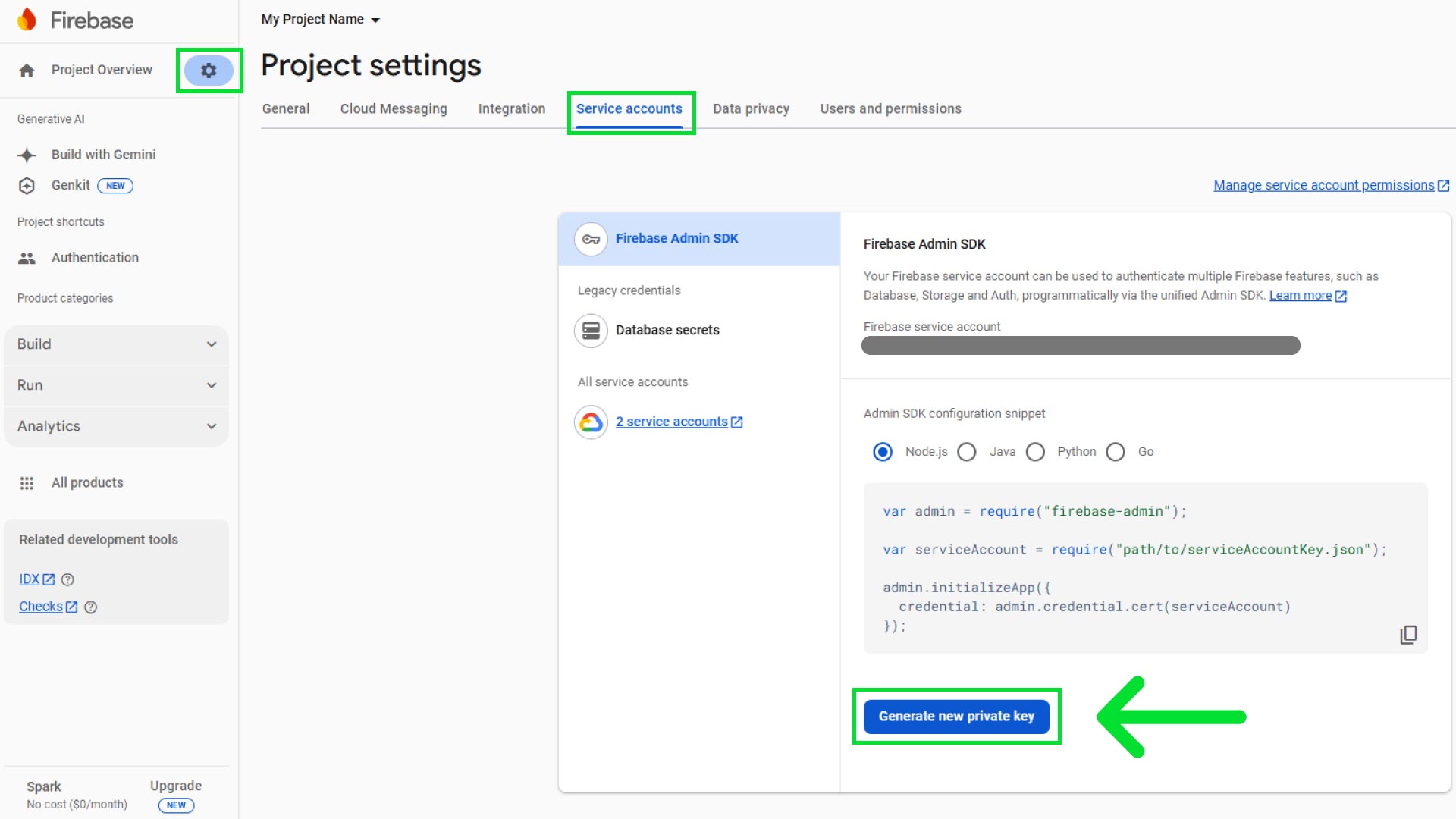
- It will provide you with a JSON file. Securely store the JSON file containing the key.
- Then open the backend code in VS code and go to
.envfile, then go to Firebase Admin SDK section and then place your private keys in the respected fields.
# Firebase Admin SDK
FIREBASE_ADMIN_TYPE="*************"
FIREBASE_ADMIN_PROJECT_ID="**********"
FIREBASE_ADMIN_PRIVATE_KEY_ID="****************************************"
FIREBASE_ADMIN_PRIVATE_KEY="*******************************************......"
FIREBASE_ADMIN_CLIENT_EMAIL="**************************************************"
FIREBASE_ADMIN_CLIENT_ID="*********************"
FIREBASE_ADMIN_AUTH_URI="************************************"
FIREBASE_ADMIN_TOKEN_URI="**********************************"
FIREBASE_ADMIN_AUTH_PROVIDER_X509_CERT_URL="**************************************************"
FIREBASE_ADMIN_CLIENT_X509_CERT_URL="****************************************************************************************************"
FIREBASE_ADMIN_UNIVERSE_DOMAIN="************"
Custom Domain Setup
Both administrator and users can setup custom domains from their dashboard. The domain must be verified before it is available to use. But working with custom domain is a bit tricky.
The software is developed in a way, that makes sure the 'custom domain' is properly pointing to the destination. Pointing is essential but it can't garuntee that the custom domain will work. There might be SSL handshake error, which will prevent it from working. Solution to this problem may vary from server to server.
Here are some ways to solve the issue.
1. NGINX (OpenResty)
One solution might be to use NGINX reverse proxy to forward incoming traffic to destination. Standard NGINX cannot generate SSL certificates on the fly. To do this, you must use OpenResty. OpenResty is a bundled version of NGINX that includes Lua scripting, which allows you to run code during the SSL handshake to talk to Let's Encrypt SSL dynamically.
user nobody;
worker_processes auto;
pid /usr/local/openresty/nginx/logs/nginx.pid;

events {
    worker_connections 1024;
}

http {
    include       mime.types;
    default_type  application/octet-stream;

    # Logs
    access_log /usr/local/openresty/nginx/logs/access.log;
    error_log /usr/local/openresty/nginx/logs/error.log;

    # Shared Memory Zones (Required for Auto-SSL)
    lua_shared_dict auto_ssl 1m;
    lua_shared_dict auto_ssl_settings 64k;

    # DNS Resolver (Required to talk to Let's Encrypt & OCSP)
    resolver 8.8.8.8 8.8.4.4 valid=86400s;

    # --- AUTO SSL INITIALIZATION ---
    init_by_lua_block {
        local auto_ssl = require "resty.auto-ssl"
        local http = require "resty.http"

        auto_ssl:set("auto_ssl:settings", {
            -- Storage for certificates
            dir = "/etc/resty-auto-ssl/storage",

            -- SECURITY: Check with Node.js before issuing cert
            allow_domain = function(domain)
                -- 1. Create HTTP client
                local httpc = http.new()

                -- 2. Call your Node.js backend
                -- We use 127.0.0.1:8000 assuming your Node app runs there
                local res, err = httpc:request_uri("http://127.0.0.1:8000/api/is-verified", {
                    method = "GET",
                    query = { domain = domain },
                    headers = {
                        ["Host"] = "localhost"
                    }
                })

                -- 3. Check result
                if not res then
                    ngx.log(ngx.ERR, "Failed to call validation API: ", err)
                    return false
                end

                -- 4. Only return true if Node returns HTTP 200
                if res.status == 200 then
                    return true
                else
                    return false
                end
            end
        })

        auto_ssl:init()
    }

    init_worker_by_lua_block {
        local auto_ssl = require "resty.auto-ssl"
        auto_ssl:init_worker()
    }

    # --- HTTP SERVER (Port 80) ---
    server {
        listen 80;

        # Endpoint used by Let's Encrypt for verification
        location /.well-known/acme-challenge/ {
            content_by_lua_block {
                local auto_ssl = require "resty.auto-ssl"
                auto_ssl:challenge_server()
            }
        }

        # Force HTTPS for everything else
        location / {
            return 301 https://$host$request_uri;
        }
    }

    # --- INTERNAL HOOK SERVER ---
    # Required for auto-ssl internal tasks
    server {
        listen 127.0.0.1:8999;
        client_body_buffer_size 128k;
        client_max_body_size 128k;

        location / {
            content_by_lua_block {
                local auto_ssl = require "resty.auto-ssl"
                auto_ssl:hook_server()
            }
        }
    }

    # --- HTTPS SERVER (Port 443) ---
    server {
        listen 443 ssl;

        # Dynamic Certificate Generation
        ssl_certificate_by_lua_block {
            local auto_ssl = require "resty.auto-ssl"
            auto_ssl:ssl_certificate()
        }

        # Fallback certs (used only during setup)
        ssl_certificate /etc/ssl/resty-auto-ssl-fallback.crt;
        ssl_certificate_key /etc/ssl/resty-auto-ssl-fallback.key;

        # Proxy to Node.js Backend
        location / {
            proxy_pass http://127.0.0.1:8000;
            proxy_http_version 1.1;
            proxy_set_header Upgrade $http_upgrade;
            proxy_set_header Connection 'upgrade';
            proxy_set_header Host $host;
            proxy_cache_bypass $http_upgrade;

            # Pass real IP
            proxy_set_header X-Real-IP $remote_addr;
            proxy_set_header X-Forwarded-For $proxy_add_x_forwarded_for;
            proxy_set_header X-Forwarded-Proto $scheme;
        }
    }
}
2. Caddy
Caddy has a feature called On-Demand TLS built-in. It requires no plugins, no Lua, and no complex config. It automatically provisions an SSL certificate the moment a user visits their custom domain for the first time.
Click here to learn more about Caddy On-Demand TLS.
{
    # Optional Step
    # Security: Check local backend directly.
    # Using 'localhost' is faster and prevents DNS/Routing loops.
    on_demand_tls {
        ask http://127.0.0.1:8000/api/domain/is-verified
    }
}

:443 {
    tls {
        on_demand
    }

    # Point to your running Node.js app port (e.g., 8000)
    reverse_proxy 127.0.0.1:8000
}
Use localhost (or your internal IP/Docker service name) for both the ask endpoint and the reverse_proxy.
Maxmind Geolocation Service
We use Maxminds geolocation data to identify the location of the user.
- Create a free Maxmind account at https://www.maxmind.com/en/geolite2/signup
- Go to Manage License Keys section.
- Get
Account idandLicense keyfrom Maxmind.
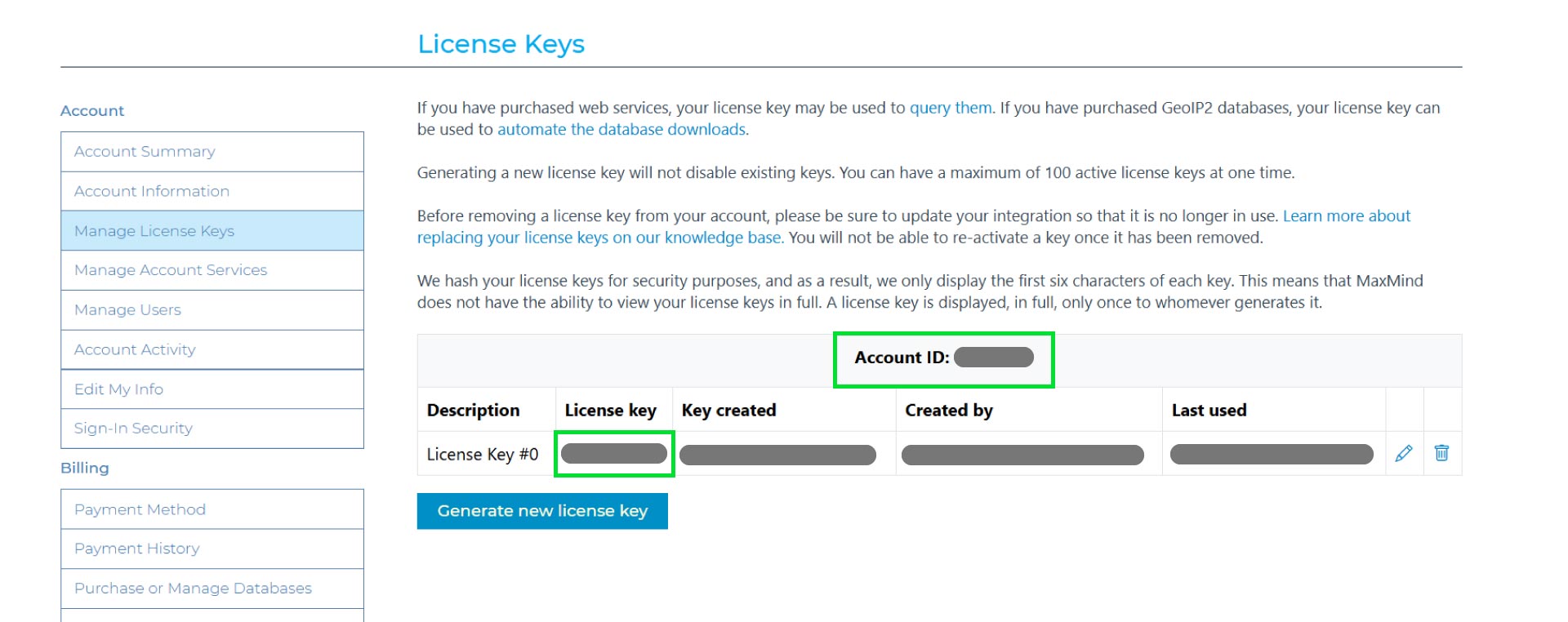
- Open your backend code and go to
package.jsonfile. Write account id and license key ingeolite2section's"account-id"and"license-key"respectively.
  "geolite2": {
    "account-id": "*******",
    "license-key": "****************************************",
    "selected-dbs": [
      "Country"
    ]
  }
- Then open the
.envfile and write theMAXMIND_ACCOUNT_IDandMAXMIND_LICENSE_KEYvariables respectively.
# Maxmind
MAXMIND_ACCOUNT_ID="*******"
MAXMIND_LICENSE_KEY="****************************************"
Payment Service Providers
Filament supports 3 payment service providers - Stripe, PayPal and Razorpay. You can use one or more payment service providers in the system, if they are supported in your region. You can activate or deactivate any of them from the frontend dashboard later.
Stripe
-
Create a Stripe account at https://dashboard.stripe.com/register
-
The it will redirect you to dashboard: https://dashboard.stripe.com/test/dashboard
-
From the dashboard copy
Publishable keyandSecret key. Then save them in a secure place.
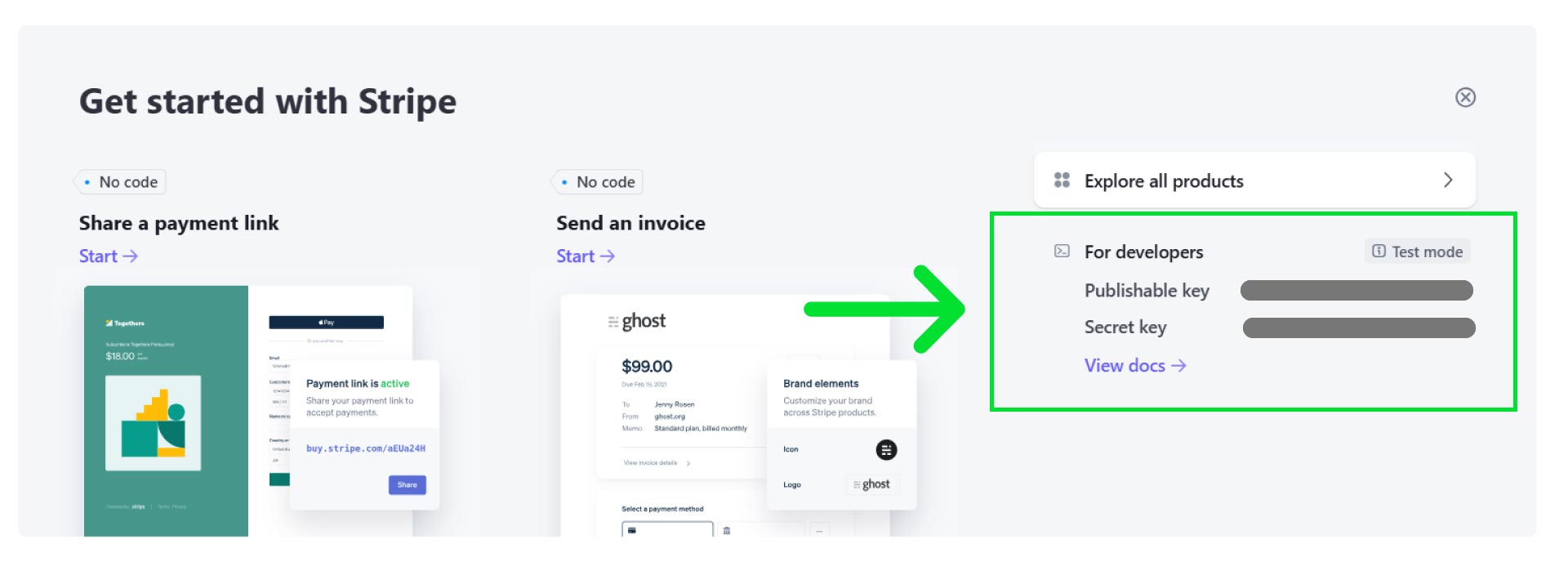
-
Open the backend code in VS code and go to
.envfile, then place your secret key inSTRIPE_SECRET_KEYvariable and save it. -
From Dashboard's bottom-left corner click on Developers
-
Then click on Webhooks tab and then click on Create an event destination.
-
Then Add an end point
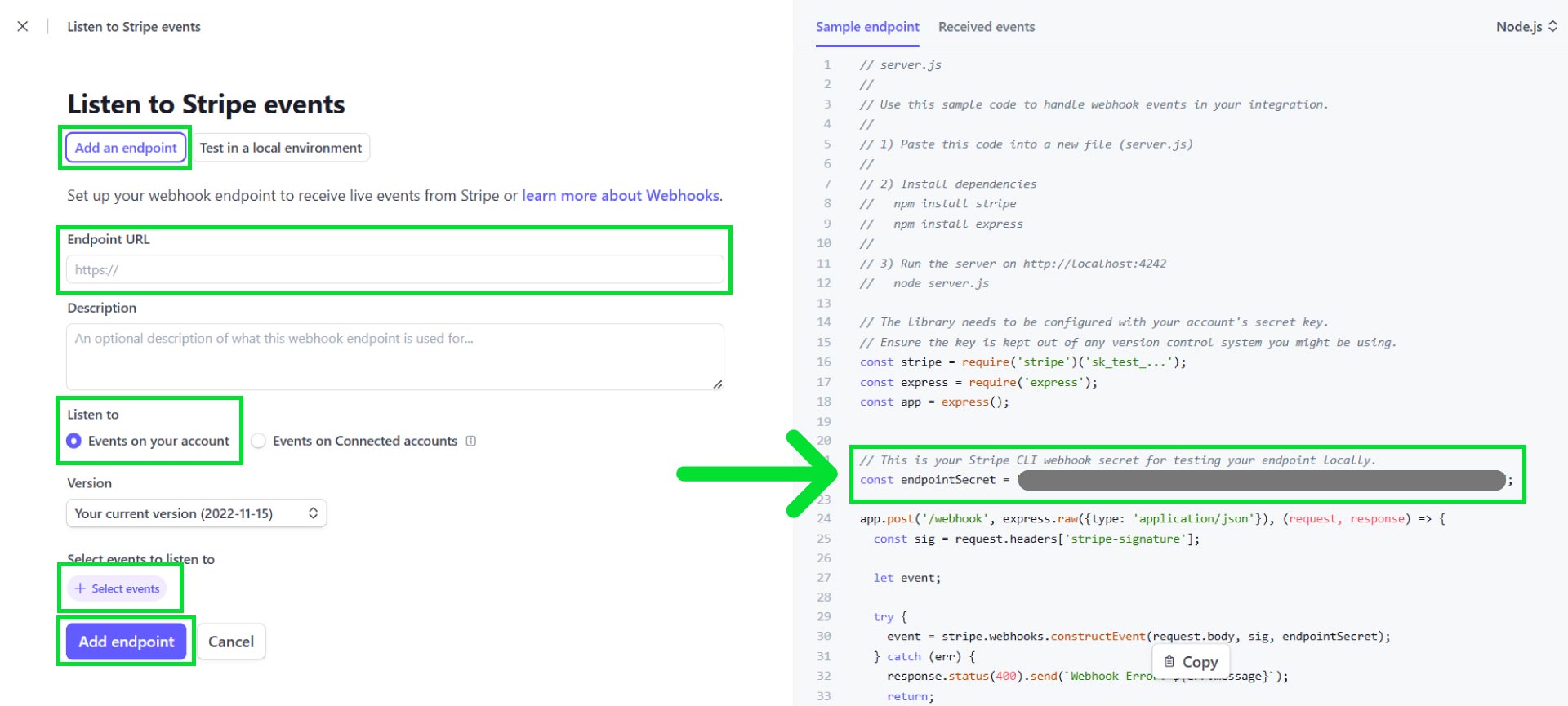
- Your webhook Endpoint URL looks like
https://www.yourdomain.com/api/webhook/stripe. Replacewww.yourdomain.comwith your primary backend domain name. - Then write description if you want and select Listen to Events on your account.
- Then select the following events:
checkout.session.completed
checkout.session.async_payment_succeeded
customer.subscription.deleted
customer.subscription.paused
customer.subscription.resumed
customer.subscription.updated
- Copy
endpointSecretcode. - Click Add endpoint.
- Now open
.envfile from backend code, and add theendpointSecretvalue toSTRIPE_WEBHOOK_SECRETand save the file.
# Stripe
STRIPE_SECRET_KEY="****************************************************************"
STRIPE_WEBHOOK_SECRET="************************************************"
By default Stripe comes with Test mode. You can use test mode to test stripe payments. To accept real payments, follow stripe business onboarding process.
Paypal
To setup PayPal, create an account, get the client Id, client secret. To test payments set PAYPAL_MODE to sandbox, to recieve real payments, set PAYPAL_MODE ro live. Set the client id and client secret to PAYPAL_CLIENT_ID and PAYPAL_CLIENT_SECRET respectively.
Your paypal webhook URL is https://www.yourdomain.com/api/webhook/paypal, replace www.yourdomain.com with your primary backend domain name. Then get the webhook id and place it on PAYPAL_WEBHOOK_ID environment variable.
BILLING.SUBSCRIPTION.CREATED
BILLING.SUBSCRIPTION.ACTIVATED
BILLING.SUBSCRIPTION.RENEWED
PAYMENT.SALE.COMPLETED
BILLING.SUBSCRIPTION.EXPIRED
BILLING.SUBSCRIPTION.PAYMENT.FAILED
BILLING.SUBSCRIPTION.CANCELLED
BILLING.SUBSCRIPTION.SUSPENDED
CHECKOUT.ORDER.APPROVED
CHECKOUT.PAYMENT-APPROVAL.REVERSED
PAYMENT.CAPTURE.COMPLETED
PAYMENT.CAPTURE.DENIED
# PayPal
PAYPAL_MODE="live"
PAYPAL_CLIENT_ID="************************"
PAYPAL_CLIENT_SECRET="**************************************"
PAYPAL_WEBHOOK_ID="*************************"
Razorpay
To setup Razorpay, create an account, get the Razorpay key id, and key secret. After that set them to RAZORPAY_KEY_ID and RAZORPAY_KEY_SECRET environment variables respectively.
Your Razorpay webhook URL is https://www.yourdomain.com/api/webhook/razorpay, replace www.yourdomain.com with your primary backend domain name. Then get the webhook secret and place it on RAZORPAY_WEBHOOK_SECRET environment variable.
payment_link.paid
payment_link.cancelled
payment_link.expired
subscription.authenticated
subscription.activated
subscription.charged
subscription.pending
subscription.halted
subscription.cancelled
subscription.paused
subscription.resumed
# Razorpay
RAZORPAY_KEY_ID="*************************"
RAZORPAY_KEY_SECRET="*************************"
RAZORPAY_WEBHOOK_SECRET="*******************************"
Admin User Credentials
When the backend starts for the very first time it creates an admin user, so that you can login to your frontend dashboard. Here you can change the name, email and password of the user.
Use a valid email address, that you have access. Don't make the password longer than 30 characters.
# Admin User Credentials
ADMIN_USER_NAME="Admin User"
ADMIN_USER_EMAIL="admin@mail.com"
ADMIN_USER_PASSWORD="adminPassword98765#"